The Veeam Health Check Utility is a free, read-only diagnostic tool that analyzes a Veeam Backup & Replication environment against Veeam best practices. It highlights misconfigurations, performance risks, security gaps, and upgrade readiness issues without changing anything in your environment.
Using the Veeam Health Check Utility gives you proactive visibility into your backup environment before small issues become major incidents. Here are the key benefits:
1. Identifies Hidden Risks
Backup jobs may show “Success,” but that doesn’t always mean your environment is healthy. The utility uncovers:
- Misconfigurations
- Repository or proxy bottlenecks
- Retention inconsistencies
- Deprecated or unsupported components
It highlights risks that often go unnoticed until a restore fails.
2. Strengthens Security & Ransomware Protection
The Health Check validates best practices around:
- Immutability configuration
- Credential security
- Encryption settings
- Repository hardening
This ensures your backup environment is not the weakest link during a cyber incident.
3. Optimises Performance
The Health Check reviews:
- Transport modes
- Proxy/repository alignment
- SOBR configuration
- Capacity tier usage
4. Ensures Upgrade Readiness
Before upgrading Veeam Backup & Replication, the utility helps:
- Identify unsupported OS or components
- Detect configuration issues that may break post-upgrade
- Reduce downtime risk
This makes version transitions smoother and safer.
5. Provides Clear, Actionable Reporting
The generated HTML report:
- Categorises findings by severity (Info / Warning / Critical)
- Details of the event
6. Completely Safe & Read-Only
The Veeam Health Check Utility:
- Makes no configuration changes
- Can be run in production
- Requires no installation onto the Windows OS
- Can be run as often as you like
You get deep insight without operational risk.
7. Enables Proactive Maintenance
Running the health check quarterly (or before major changes) helps you:
- Maintain compliance with best practices
- Improve resilience over time
- Prevent emergency firefighting
8. Veeam Health Check is Perfect for
- Pre-upgrade validation
- Security and hardening checks
- Performance troubleshooting
- Customer health assessments
Veeam Health Check Prerequisites
Before you start, make sure you have:
- A Windows machine (can be the Veeam server itself or a jump box)
- Network connectivity to the Veeam Backup Server
- An account with Veeam Backup Administrator rights
- PowerShell 5.1+ (installed by default on modern Windows)
There are no agents, no services or permanent software installs to run the Veeam Health Check.
- Download the Utility
Go to Veeam Github (this is the latest version at the time of writing this blog) – https://github.com/VeeamHub/veeam-healthcheck/releases/tag/v3.0.1.79
Download the latest ZIP file
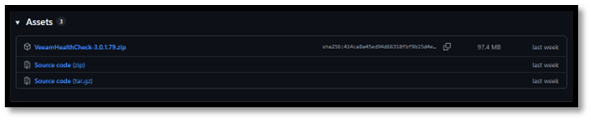
Extract it to a local folder (e.g. C:\VeeamHealthCheck).
- Run the Health Check
Navigate to the extracted folder. I ran the Veeam Health Check Utility from the Veeam Backup Server running v13 for Windows.
Launch the utility by right clicking VeeamHealthCheck.exe application and Run as Administrator:
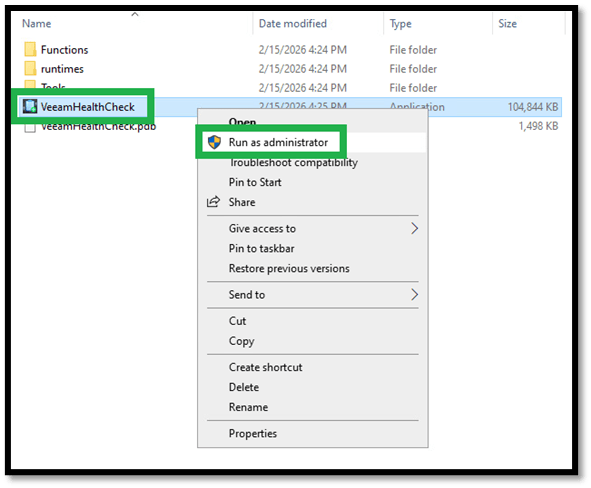
When prompted, enter:
- Veeam Backup Server name or IP Address in the VBR Server Field and click on Add
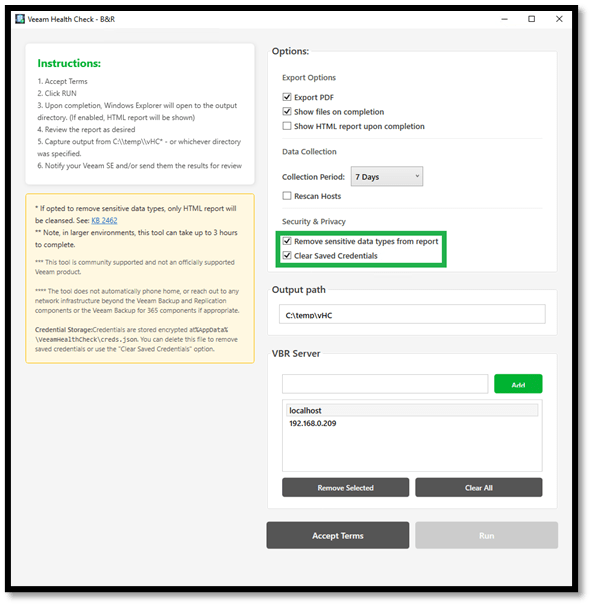
The script connects via Veeam PowerShell snap-in and starts collecting data.
You can also opt to remove sensitive data types (only in HTML report) as highlighted in green. See Veeam KB Article KB2462 – https://www.veeam.com/kb2462
- Review the Report
Once completed, the tool generates:
- HTML Report (main deliverable)
- CSV / JSON files (optional, for deeper analysis)
The HTML report is neatly broken down into sections such as:
Core Areas Checked
- Veeam Backup Server & Config DB configuration info
- Proxy and repository alignment
- SOBR design and capacity tiers
- Immutability & ransomware protection
- Job configuration best practices
- Credential security and encryption
- Upgrade and version readiness
Each finding is tagged with:
- Severity (Info / Warning / Critical)
- Details of the event
- Act on the Findings
Work through the compliance table best practises results.
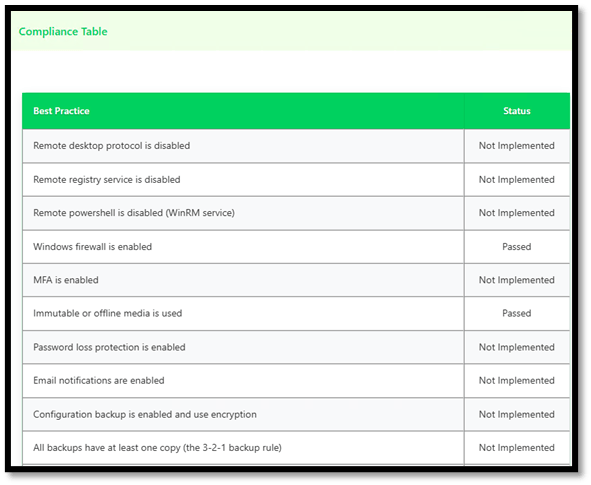
Typical actions after a health check is run:
- Fix repository misalignment or transport modes
- Harden Linux repos (immutability, SSH, sudo)
- Correct job chains and retention mismatches
- Identify unsupported or deprecated components
Best Practices for using the Veeam Health Check
- Run before upgrades
- Run after major changes
- Include it in quarterly health checks
- Attach the HTML report to customer or internal reviews
Veeam partners can use this as a standard health assessment deliverable for their end customers.
Limitations to Know
- There is NO Auto-Fix capability in the health check and this is by design
- This does not replace Veeam ONE and its reporting capabilities
- The health check is a snapshot-in-time only and not continuous monitoring.
Final Thoughts
A Veeam Health Check isn’t just a technical exercise it’s a proactive safeguard for your entire data protection strategy. By validating your environment against proven best practices, it helps uncover hidden risks, performance bottlenecks, security gaps, and architectural misalignments long before they become outages or failed restores.
The real value lies in prevention. Instead of reacting to backup failures, ransomware exposure, or upgrade complications, you gain clear, actionable insights that strengthen resilience, improve recoverability, and optimise performance. It transforms “green job status” into genuine operational confidence.
Whether you’re preparing for an upgrade, strengthening ransomware defences, or simply ensuring your environment remains aligned with evolving best practices, a regular Veeam Health Check turns uncertainty into assurance. In short, it’s one of the simplest ways to protect what matters most, your data.
Published: February 24, 2026 03:05pm
 Zamaan's Tech Blogs
Leave a comment