Veeam Data Cloud Vault is a fully managed, secure cloud storage service designed to provide a simple and reliable offsite backup target for Veeam workloads. Built on Hyperscalers object storage (Azure & AWS), it removes the complexity of deploying and managing your own cloud infrastructure while delivering encrypted, immutable, and logically air-gapped backups. By integrating natively with Veeam Backup & Replication and Veeam Backup for Microsoft Azure, Veeam Data Cloud Vault enables organisations to strengthen their data protection posture with minimal operational effort.
What is Veeam Data Cloud Vault?
Veeam Data Cloud Vault is a fully managed offsite cloud object storage service purpose-built for storing your Veeam backups with:
- Immutable, encrypted, logically air-gapped storage
- Zero infrastructure management
- Predictable per-TB pricing
- Support for Azure blob & AWS Object storage
It’s available via the Azure & AWS Marketplace so you can deploy it with ease and integrate it into your existing Veeam environment.
Benefits
The key benefits of Veeam Data Vault lie in its focus on security, simplicity, and predictability. Immutability is enforced by design to protect backups from ransomware and accidental deletion, while end-to-end encryption ensures data remains secure both in transit and at rest. With predictable per-terabyte pricing that includes API calls and egress, organisations gain clear cost visibility without hidden charges. Combined with zero infrastructure management and rapid deployment via the Azure & AWS Marketplace, Veeam Data Vault helps teams confidently implement the 3-2-1-1-0 backup strategy and improve overall cyber resilience.
There a few ways Veeam Data Cloud Vault can be procured.
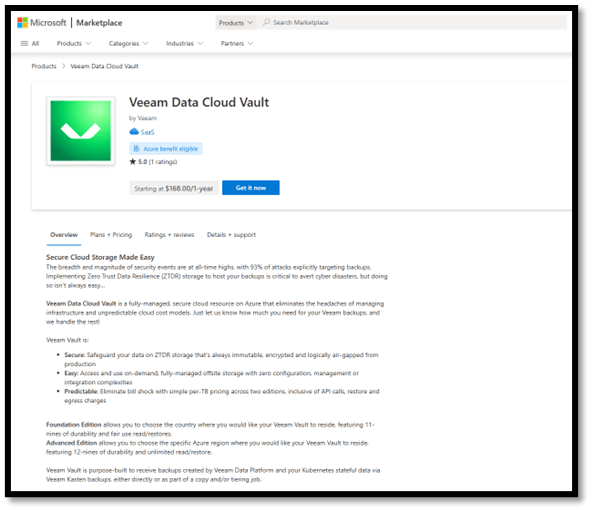
- From the Azure Marketplace using the following link – https://marketplace.microsoft.com/en-us/product/saas/ct4.vdcvault
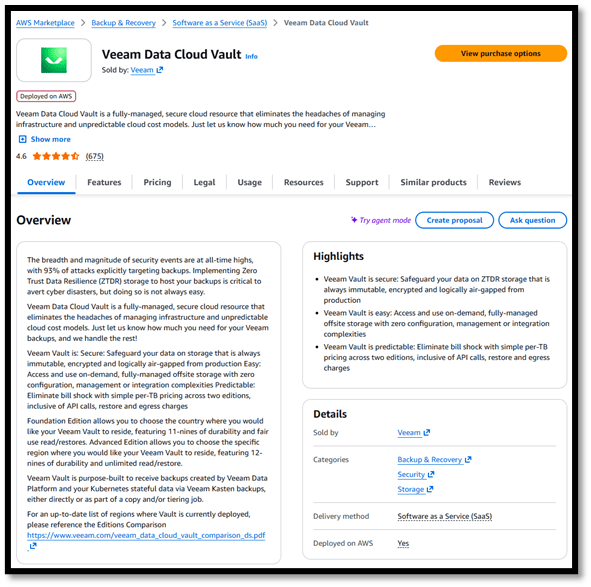
- From the AWS Marketplace using the following link – https://aws.amazon.com/marketplace/pp/prodview-i7rxmzeztp544
In this blog I go through my experience with deploying Veeam Data Cloud Vault from the Azure Marketplace and some of the things to look out for and deployment considerations.
Deploy Veeam Data Cloud Vault from Azure Marketplace
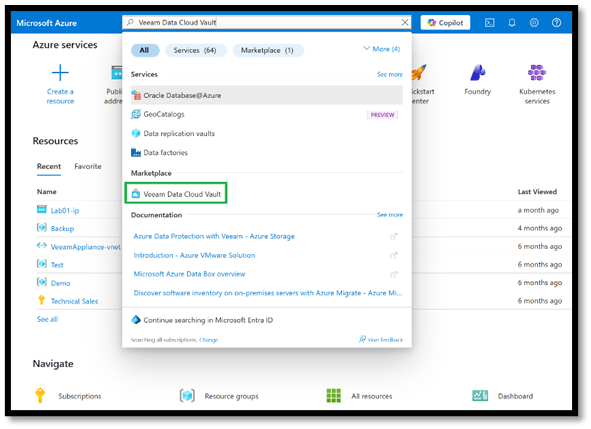
- Sign in to the Azure Portal (https://portal.azure.com) and search for Veeam Data Cloud Vault.
- The Azure account used to log into the environment needs to have Subscription Owner and Global Admin privileges to be able to deploy the Veeam Vault services.
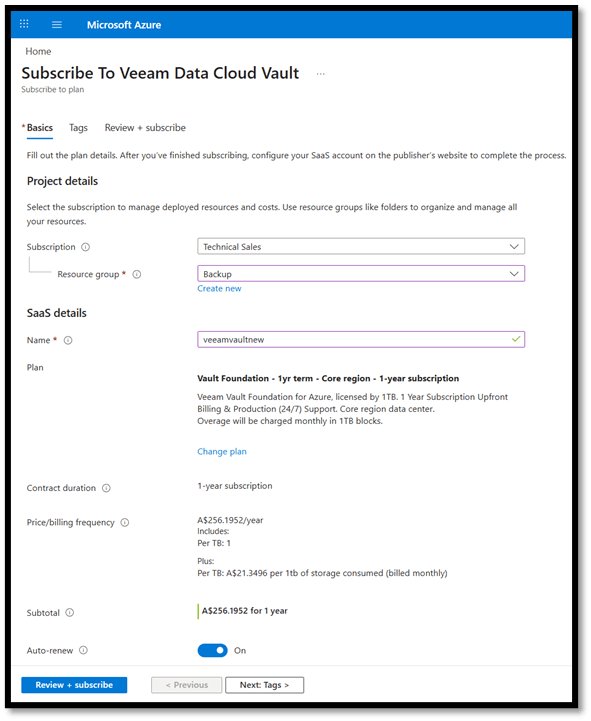
- Select the Subscription & Resource Group and give it a name. In this page you can also change the plan of the Vault subscription. There are a number of different options with the Vault Plans and pricing is based on your selection:
- Foundation and Advanced
- The main differences between the Foundation and Advanced editions are georedundancy options, data read and restore limits, and how precisely you can specify where to keep your data.
- Core and Non-Core
- The differences between the Core and Non-Core editions is available regions for the vault location
- Review the subscription and Click on Subscribe to provision Veeam Cloud Vault.
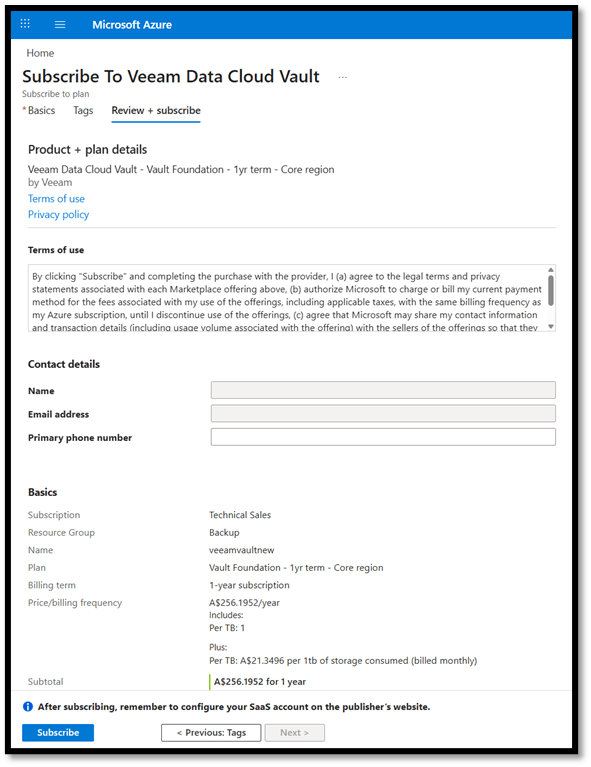
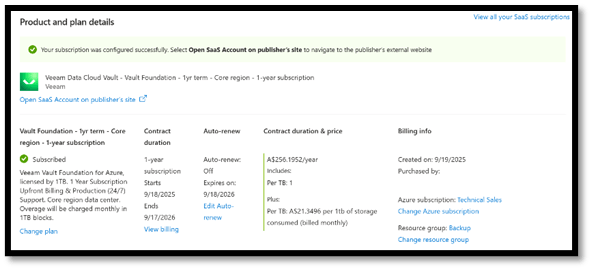
- Veeam Data Vault deployment will initiate and once successfully deployed you will see something like the below when completed after which you will be asked to log into the Veeam portal.
- Login using either you Microsoft Azure account (account used to access the Azure Portal) or your Veeam Data Cloud portal credentials.
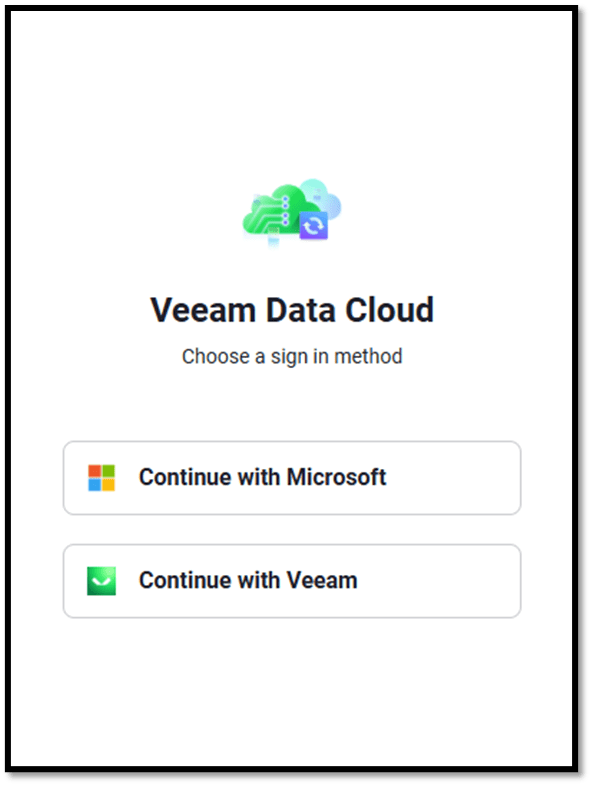
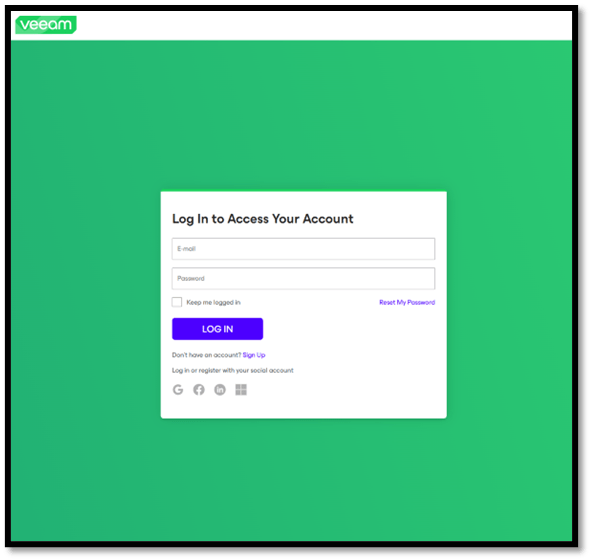
- I chose Continue with Veeam and input my credentials into the Veeam Cloud portal.
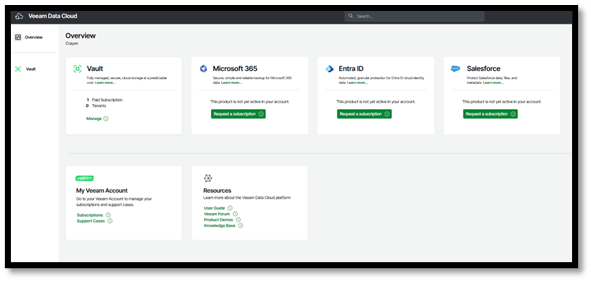
- You are logged into the cloud.veeam.com portal. In the overview section, you will see all the Veeam SaaS products. Click on the Vault tile.
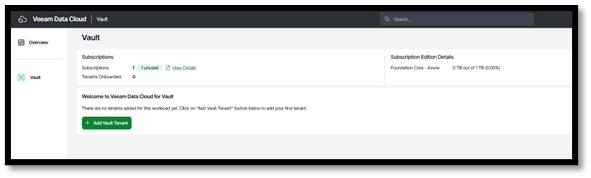
- The Vault page displays the subscriptions and number of tenants onboarded under the Vault subscription. Since I have no tenants onboarded and to be able to offload Veeam backups to Veeam Data Vault, a Vault tenant must be added. Click on Add Vault Tenant.
Vault tenants provide a mechanism to organize storage vaults, associate them with subscriptions, and control management access.
Note – In Veeam Data Cloud Vault, you can create multiple tenants. Each tenant is linked to only one subscription, but a single subscription can be assigned to multiple tenants. Tenants help you organize storage vaults in the following ways:
- Each tenant can manage its storage vaults under its assigned subscription, this enables you to separate and organize data storages.
- You can control which subscription is associated with each tenant.
- By adding more tenants, you can customize user access so that each user can only access the necessary data.
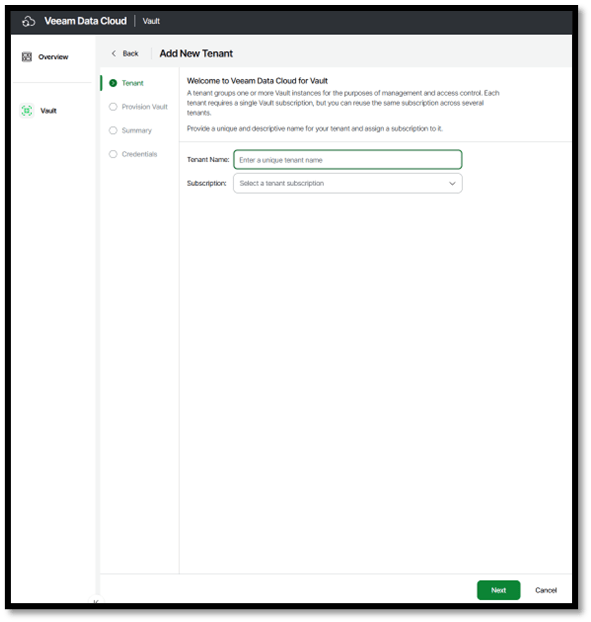
- Provide a name in the Tenant Name field and then select the Subscription from the dropdown list and click Next.
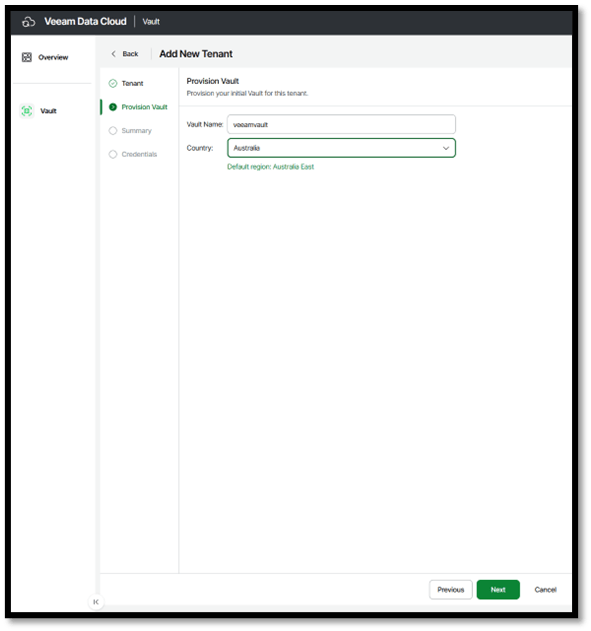
- Specify the name in the Vault Name field and choose the Country from the dropdown list that you would like Vault data to reside in. Click Next.
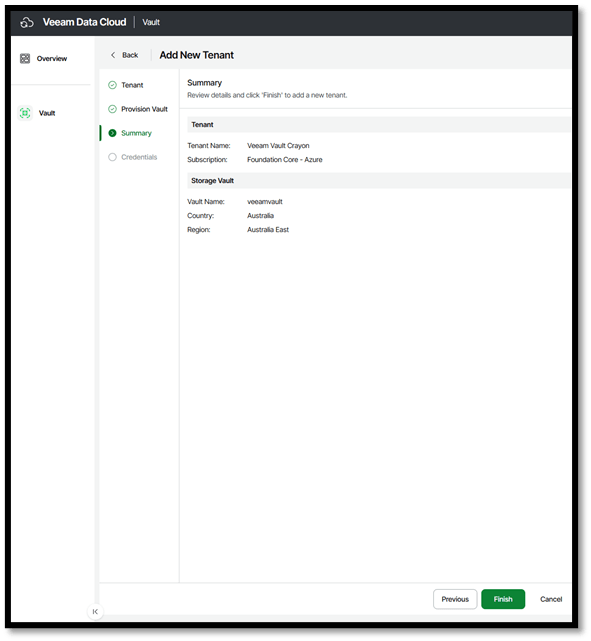
- Summary of the tenant to be created and click Finish.
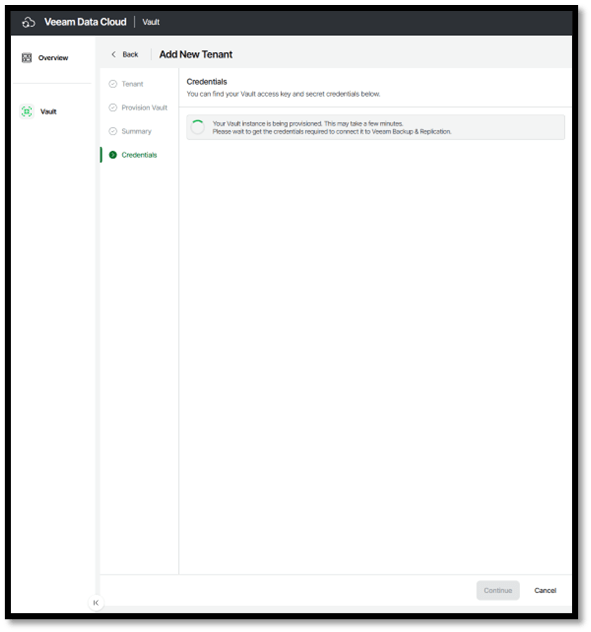
- The Vault instance is now being provisioned. Once this is completed, please click on Continue. This will take you back to the Vault Page.
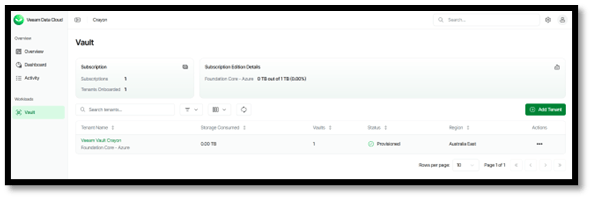
Deploying Veeam Data Cloud Vault in Backup & Replication v13 for Windows
Now that we have setup Veeam Data Cloud Vault, we will need to add this into the Veeam Backup & Replication as a Object Storage repository. In my example, I will be setting up Veeam Data Cloud Vault on Veeam Backup & Replication V13 for Windows.
- To create a Veeam Data Cloud Vault repository, click on Backup Infrastructure, Backup Repositories and then Add Repository located on the top left-hand side of the console. Click on Veeam Data Cloud Vault from the Add Backup Repository window.

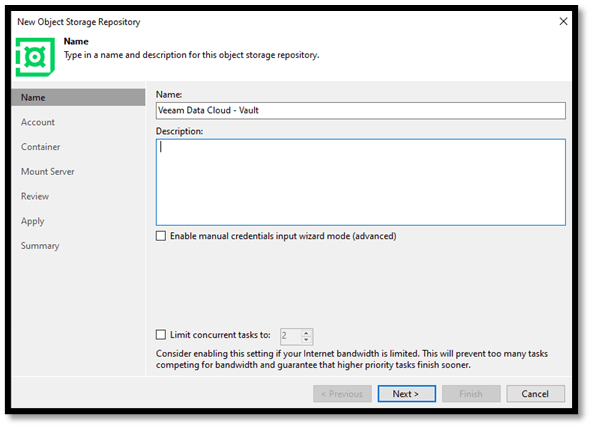
- Give Veeam Data Cloud Vault repository a name and click on Next. Tick Enable manual credentials input wizard mode (advanced) if you want to enter the credentials manually in the next step.
- Click on Authorize. Another window will pop up (as below) asking for you to enter the credentials of the user account used to access my.veeam.com portal.
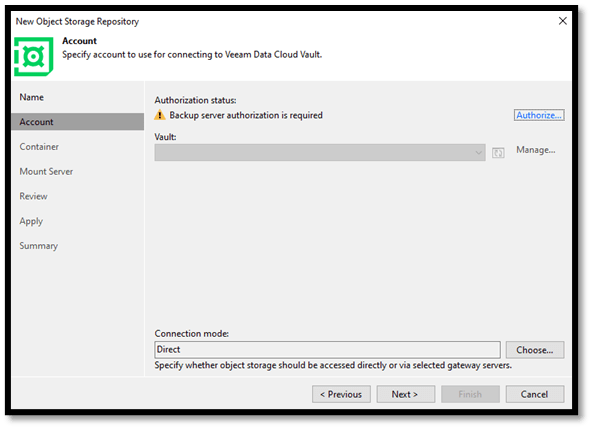
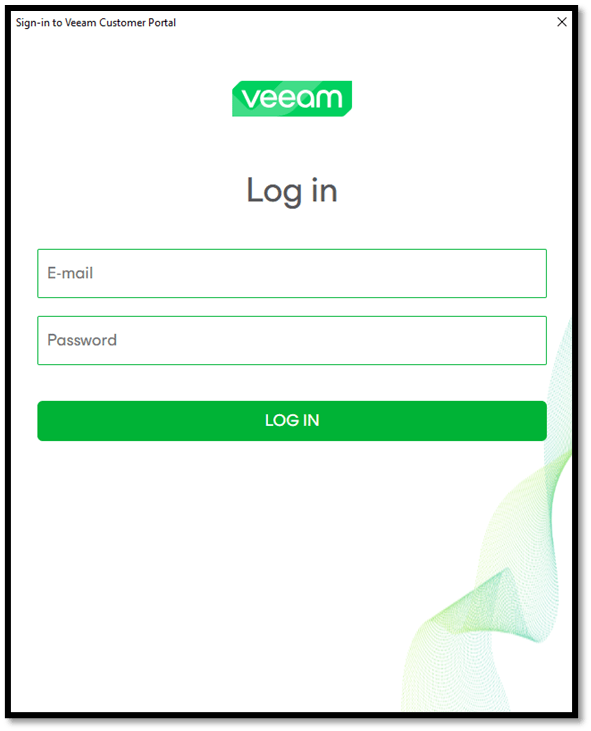
This is where I started having some issues when authorizing my VBR server using the my.veeam.com credentials. If you get the following error, couple of things to look at:
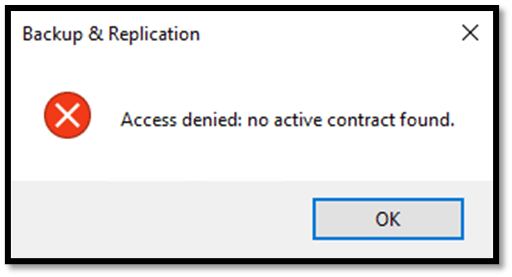
- If incorrect credentials are used to Authorize the VBR server you will encounter this error. Ensure that the email address you use matches the email address of the License Administrator. If you plan to delegate access to another user, make sure that they also are assigned the License Administrator role. Only the License Administrator account will work, regardless of whether or not additional accounts are configured as Administrators within the VDC Dashboard
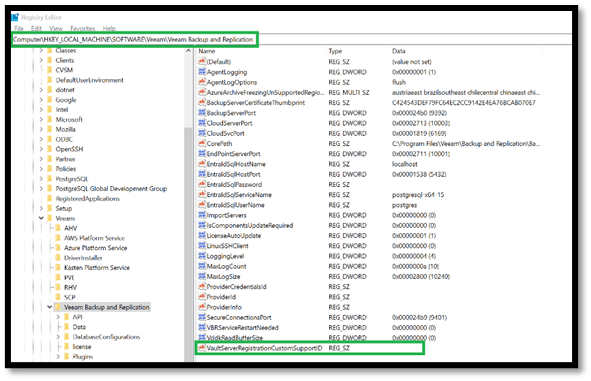
- If the Veeam Data Cloud Vault storage account that is associated with your Support ID is different to the account associated to the VBR License, you will also receive this error message. This was the case when I was Authorising my Backup Server. A workaround for this is to create the following registry value before Authorizing the Backup Server.
Key Location: HKEY_LOCAL_MACHINE\SOFTWARE\Veeam\Veeam Backup and Replication
Value Name: VaultServerRegistrationCustomSupportID
Value Type: String Value (REG_SZ)
Value Data: ### (Veeam Cloud Service Provider’s Support ID)
Specify the Support ID associated with the Service Provider’s VDC Vault storage account for the value data.
PowerShell script to create the registry value:
# Update $supportID value before executing.
$supportID = “00000000”
New-ItemProperty -Path ‘HKLM:\SOFTWARE\Veeam\Veeam Backup and Replication\’ -Name ‘VaultServerRegistrationCustomSupportID’ -Value $supportID -PropertyType String -Force
After successfully adding the VDC Vault storage account, the registry value can be safely removed.
Refer to Veeam Knowledge Base Article – KB4748 (https://www.veeam.com/kb4748)
- Once the VBR server has been authorized (Veeam will register the Backup Server in the Veeam Data Cloud Portal), click on Manage and a pop-up window will appear to log into the Veeam Data Cloud Portal. In the Veeam Data Cloud portal, in the Vault page, click on Storage Vaults and then Assignments.
Click Assign next to the registered VBR Server.
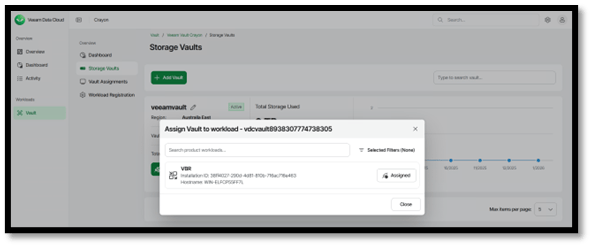
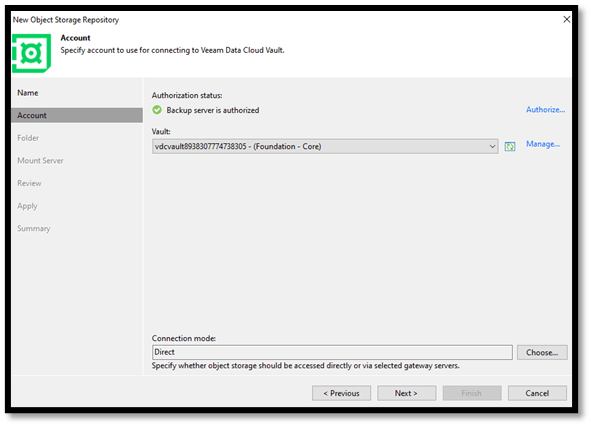
- Switch back to your VBR Console and click on the Refresh icon next to Manage. The Storage Vault will appear in the dropdown menu. Click Next.
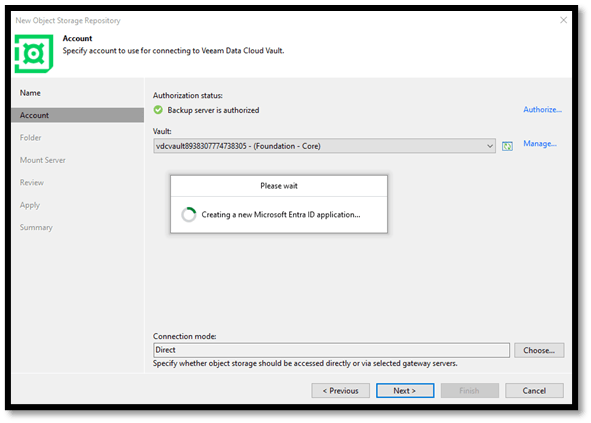
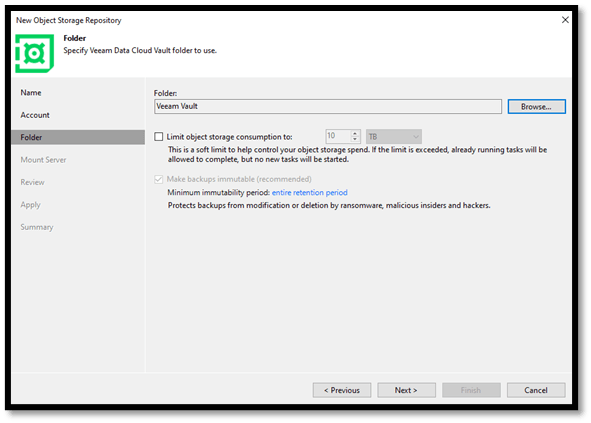
- Specify a folder by clicking on Browse. If a folder doesn’t exist, click on New Folder and then select the folder.
- Specify the Mount Server if you have a Windows or a Linux Mount Server in your environment.
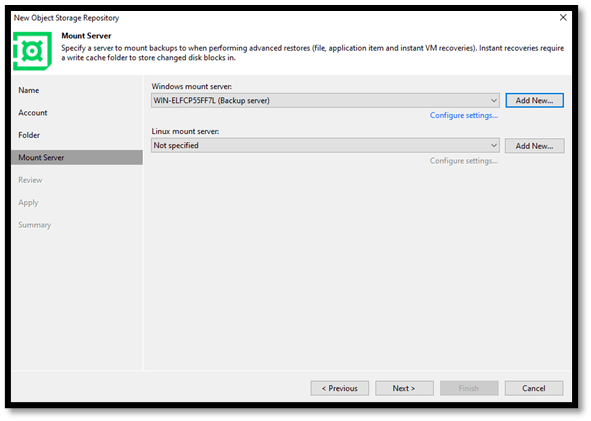
- Finally review and apply to create the Veeam Data Cloud Vault repository.
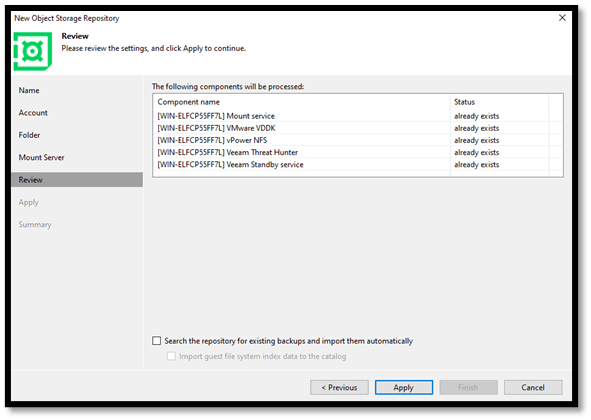
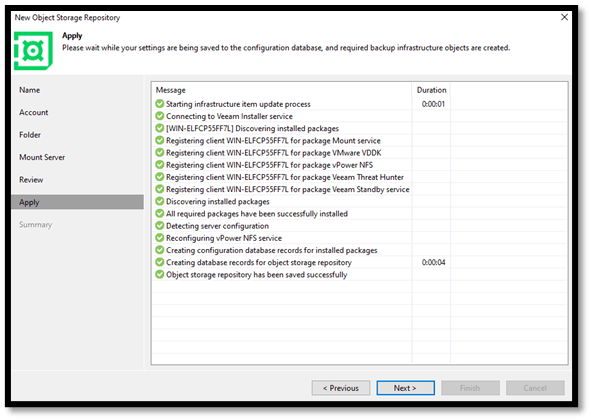
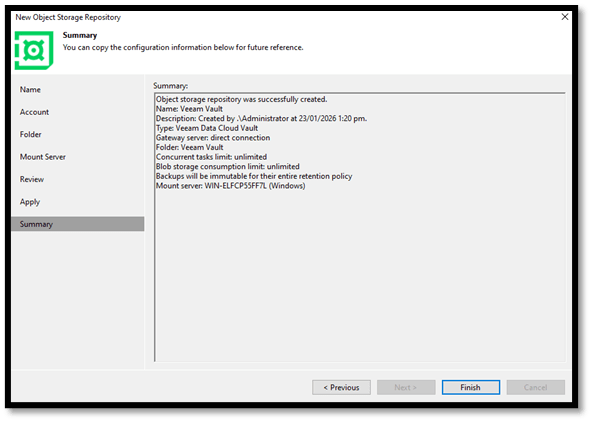
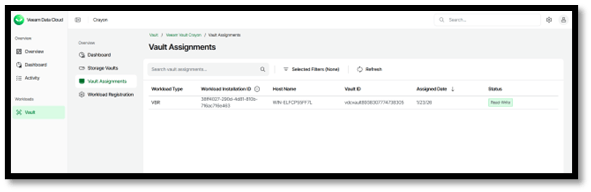
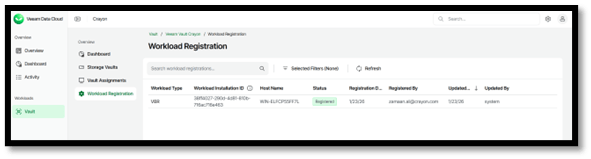
- Finally, in the Veeam Data Cloud Vault page, you are able to see the Vault Assignments and Workload Registration for the VBR server.
Final Thoughts
Deploying Veeam Data Cloud Vault with Veeam Backup & Replication delivers a streamlined and secure approach to offsite backup and cyber-resilient data protection. By eliminating the need to manage cloud storage infrastructure while enforcing immutability, encryption, and logical air-gapping by design, organisations can confidently protect their data against ransomware and accidental loss. With seamless integration, predictable costs, and alignment to the 3-2-1-1-0 best practice, Veeam Data Cloud Vault enables organisations to enhance resilience, reduce operational overhead, and ensure recoverability when it matters most.
Published: January 29, 2026 03:28pm
 Zamaan's Tech Blogs
Leave a comment