Upgrading from Veeam Backup & Replication v12.3 to v13 on Windows is more than a routine version bump, it’s a strategic move to strengthen your data protection platform. With v13, Veeam introduces enhanced security hardening, improved performance and scalability, and deeper integration with modern infrastructure platforms, all while continuing to build on the rock-solid reliability backup admins expect. A well-planned upgrade ensures you can take advantage of these new capabilities with minimal disruption, maintaining operational continuity while future-proofing your backup environment. In this blog I will take you through upgrading from v12 to v13 in my demo environment.
Firstly, we will need to download the latest version (v13) of the Veeam Backup & Replication software for Windows. There are several ways to download the latest version of Veeam v13 for Windows, whether you are looking at installing from scratch or performing an in place upgrade from v12.3 to v13.
Here are a few links where you are able to download the Veeam Backup & Replication software from Veeam.
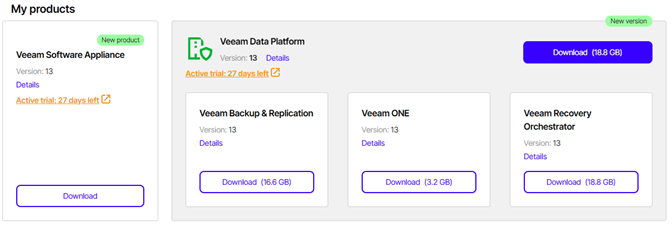
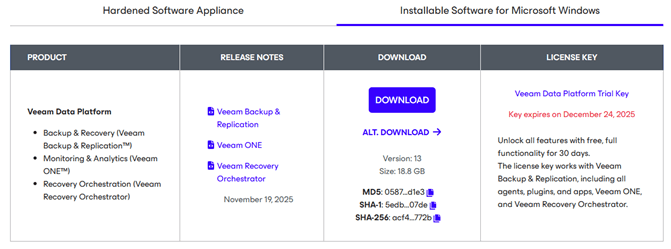

My preference is to download from the Latest Updates page (Option 3 above) as it has the Previous Versions option available if you ever need to download the older versions.
Upgrading to Veeam Backup & Replication v13 on Windows
Before upgrading to Veeam Backup & Replication v13 on Windows, the minimum running version must be 12.3.1 (build 12.3.1.1139) or later on the support Windows OS. If you are upgrading from an older version of Veeam Backup & Replication i.e. versions before 12.3.1 (build 12.3.1.1139), please refer to Veeam Knowledge Base article – https://www.veeam.com/kb2053
You may need to upgrade to an intermediary version before you will be able to upgrade to v13.
Note for Tenants of Veeam Cloud Service Providers:
If your Veeam Backup & Replication installation is connected to a Veeam Cloud Service Provider using Veeam Cloud Connect, contact your Service Provider before upgrading to ensure that the intended upgrade will not break compatibility.
A tenant cannot be on a newer version of Veeam Backup & Replication than the Service Provider. The Service Provider will need to upgrade first before the tenant side can be upgraded.
Upgrade Checklist:
The upgrade checklist is unfortunately quite substantial to ensure there are no problems when upgrading.
- Veeam Backup & Replication v13 uses the same license file format from the previous versions so you can re-use your existing licenses.
- Verify the backup server is running a supported OS – Windows Server 2016 and above.
- If you are upgrading from a supported version of Veeam Backup & Replication but the backup server OS is no longer supported (below Windows Server 2016), you can perform a configuration backup, install Veeam Backup & Replication 13.0.1 (build 13.0.1.180) on a supported OS (Windows Server 2016 and above), and restore the configuration backup. Further information on this can be found here – https://helpcenter.veeam.com/docs/vbr/userguide/vbr_config_migrate.html?ver=13
- Check all the backup infrastructure components meet the minimum system requirements in particular all backup infrastructure servers are based on 64-bit OS.
- Check the Platforms, Applications and Workloads you are going to protect meets the minimum requirements.
- If you have Veeam Backup and Replication & Veeam Backup for M365 running on the same machine, please upgrade Veeam Backup for M365 to v8.2 first then upgrade Veeam Backup & Replication
- If you are using VeeamONE to monitor the backup infrastructure, please upgrade VeeamONE first as VeeamONE v13 supports monitoring of backup servers version 12 and later.
- Make sure the latest run for all existing jobs has completed successfully. Rerun any failed jobs.
- Ensure there are no running jobs, restore sessions, Instant Recovery sessions, and SureBackup jobs. It is recommend that you do not stop running jobs and let them complete successfully.
- Disable any periodic and backup copy jobs temporarily to prevent them from starting during the upgrade.
- Disable CDP policies. Otherwise, the CDP filter will not be upgraded.
- Ensure there are no active tasks from standalone (unmounted) agents.
- Ensure there are no active Veeam Recovery Orchestrator tasks.
- Perform the configuration backup.
- Ensure you have configuration backup encryption enabled, otherwise stored credentials will not be included in it.
Start the Upgrade to v13 for Windows
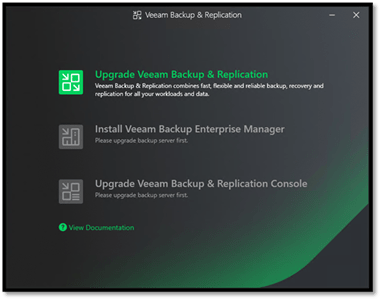
- Mount the Veeam Data Platform image (this package includes Veeam Backup & Replication, Veeam ONE & Recovery Orchestrator). Depending on the ISO you have downloaded, you will get different initial setup screens as below. The setup should start the installer automatically (autorun) but if it doesn’t start, click on Setup.exe to get started manually. Click on Upgrade.
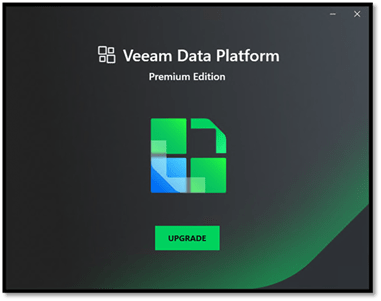
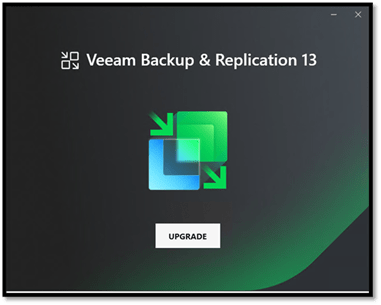
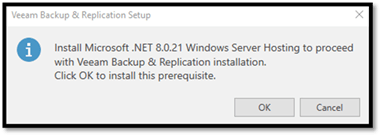
- If Microsoft .NET is not to the minimum level, you will get the below dialogue box asking to upgrade Microsoft .NET. Click OK
- Click on Upgrade Veeam Back & Replication from the setup menu
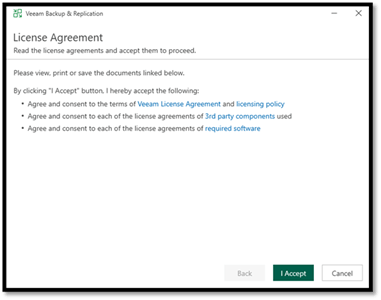
- Accept the License Agreement.
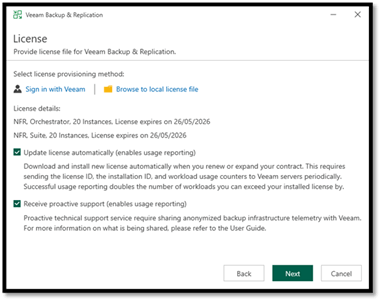
- Since this is an upgrade there is no need to install the license (.lic) file again unless there has been an increase/new workloads that needs to be protected.
- To install new licenses automatically when your contract is renewed or extended if you are in the Cloud Service Provider (VCSP) program, select the Update license automatically check box.
- If you like to receive proactive Veeam technical support services, select the Receive proactive support check box. Selecting this option also enables diagnostic data sharing. If you would like more information on what data is sent to Veeam Technical Support, please visit this Veeam KB article – https://www.veeam.com/kb2462 & https://www.veeam.com/processing_of_sensitive_data_in_support_ds.pdf
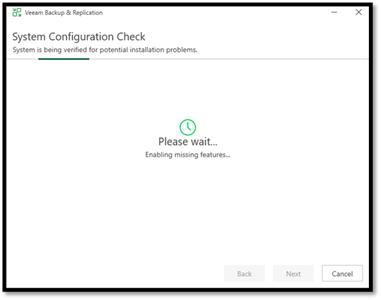
- The installer checks what software is installed and what components are missing. The setup will then try and install this automatically.
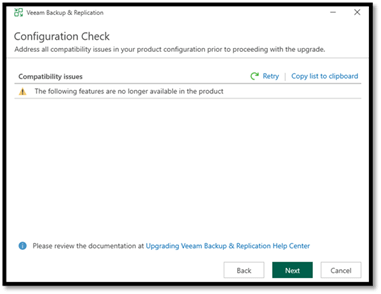
- In the Configuration Check window, the setup checks the Veeam Backup & Replication configuration. When I got to this stage of the upgrade, I came across an issue where my C: Drive Partition didn’t have enough storage capacity for the upgrade. There needs to be at least 50Gb free capacity for the upgrade. You will need to work through the issues identified in the Configuration Check list. You can hover on top of the Compatibility issues and it will display the description of what needs to be resolved.
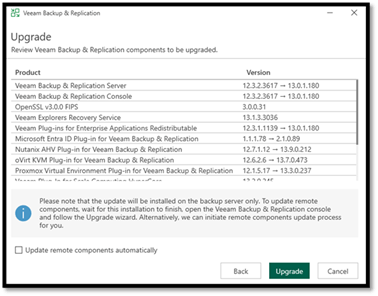
- Review the components that will be upgraded and click Next. If you would like to upgrade the remote backup infrastructure components, select the Update remote components automatically check box. If this is left unchecked, the Veeam Backup server will prompt you to upgrade the components when you start the Veeam Backup & Replication Server after the upgrade is complete.
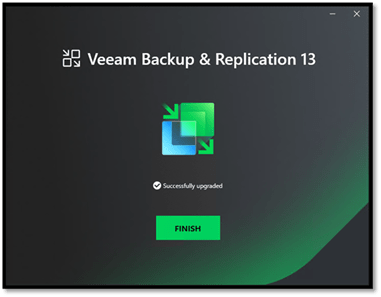
After Upgrading Veeam Backup & Replication Server to v13
- If your Veeam Backup & Replication Console is still on the previous version v12, you can now upgrade the console to version 13.
- If some of the servers weren’t upgraded, the upgrade wizard can be run at any time from the main product menu in the Veeam Backup & Replication Server.
- Any out-of-date components cannot be used by jobs until they are updated to the back server version. If you do not upgrade components on remote servers, Veeam Backup & Replication jobs will fail.
- Enable any scheduled jobs that you may have been disabled before the upgrade.
Upgrading Veeam Backup & Replication from v12.3 to v13 on Windows is a key step in keeping your data protection strategy secure, efficient, and aligned with modern enterprise demands. By carefully planning and executing the upgrade, organizations can seamlessly unlock the benefits of enhanced security, improved performance, and expanded platform support, all while preserving existing backup jobs and operational stability. The result is a more resilient Veeam environment that continues to protect critical workloads with confidence.
Published: December 10, 2025 1:25pm
 Zamaan's Tech Blogs
Leave a comment